


If you're setting up KnightWatcher for the first time, this step-by-step guide will walk you through everything you need to get started. You’ll learn how to log in, explore your dashboard, create or import trades, connect your trading account (MT5, MT4, or cTrader), and set up the Expert Advisor to automatically stream your trades to KnightWatcher using the WebRequest URL: https://knightwatcher.com/api/v1/trades/stream. By the end, you'll be able to verify your EA logs, confirm that your account is connected, and see your trading data appear in your KnightWatcher dashboard in real time.
Step 1 — Log in

Login screen — enter your email and password.
-
Go to
https://knightwatcher.comand click Log in. -
Enter your credentials and click Sign in.
-
After successful login you’ll land on the dashboard.
Step 2 — Dashboard (empty state)
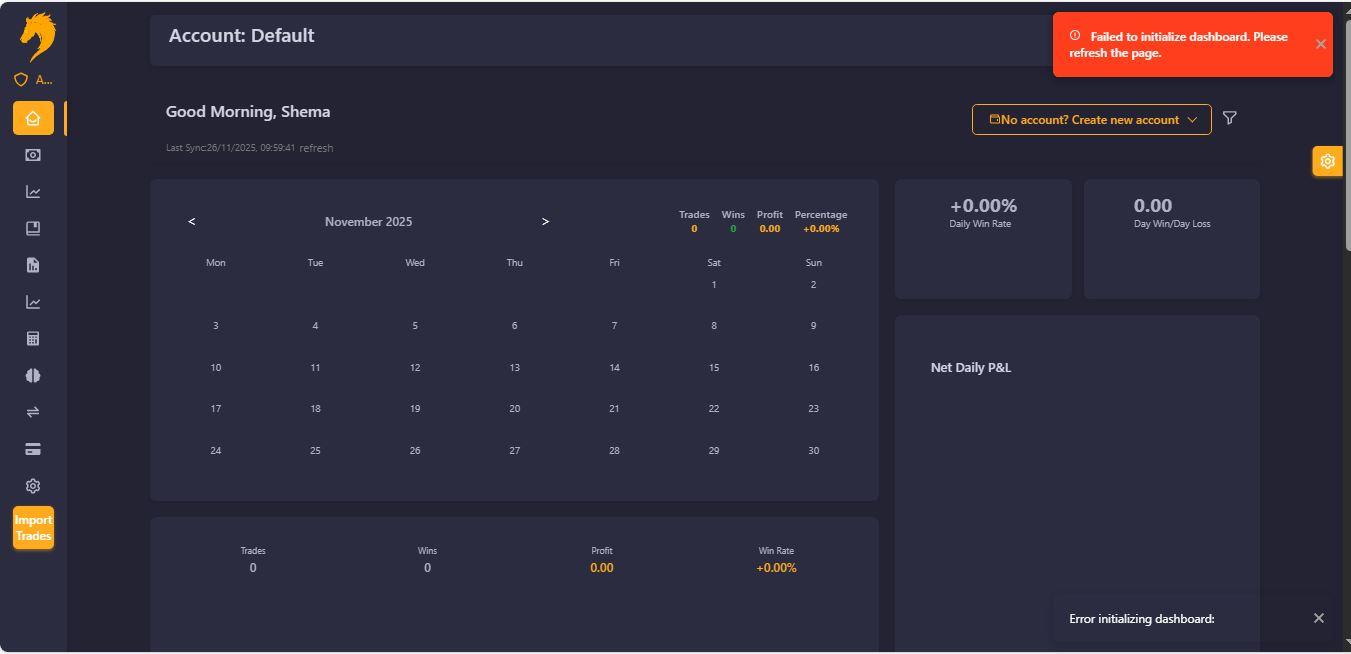 On this stage you will not see anything because we will need to start data streaming using our ea or manual upload now click on Sidebar below Big Button Import Trades
Step 3 — Create / Import Trades (manual)

Step 4 — Managed Account overview & choose platform

Now here you will choose your platform by now we support mt5 and mt4 others you see on screen will come soon please vote what you need to see very soon in order to work on them as soon as possible and then you will fill in data and choose expert advisor to get api key and secret key.
Fields to show and exact labels:
-
Account number
-
Deposit (optional, numeric)
-
Server (exact broker server name)
-
Account name (friendly label)
- Connect method:
Expert Advisor (recommended)orManual CSV / API
And click on Create Account!

Step 6 — Set up Expert Advisor (EA) on your platform

Now you will download ea or use one on mql5 Market platform both works the same and they are free. you will put in url:https://knightwatcher.com/api/v1/trades/stream

After that you will set logs like this below:

Step 7 — Enable WebRequest in MetaTrader (MT5) and add KnightWatcher URL
Follow Exact steps for MT5:
-
Open MetaTrader 5.
-
Go to
Tools→Options→Expert Advisors. -
Check Allow automated trading and Allow WebRequest for listed URL.
-
In the list of URLs add:
-
Click OK.
Note: On MT4 the path is similar:
Tools → Options → Expert Advisorsand add the same URLs. Some brokers disable WebRequest — see troubleshooting.

Step 10 — Back to KnightWatcher — verify connected status & logs and refresh

Troubleshooting (quick reference)
-
WebRequest blocked / domain not accepted
-
Re-open
Tools → Options → Expert Advisorsand ensurehttps://knightwatcher.comis listed. Restart MT5.
-
-
403/401 from KnightWatcher
-
Check that the EA is sending the correct API key/account token. Ensure the stream URL is
https(nothttp) and matches exactly the URL provided.
-
-
No data on dashboard
-
Confirm EA prints a success message in MT5 Experts log.
-
Confirm the managed account
Account number,Server, andAccount nameare correct in your KnightWatcher account. -
Confirm timezone mismatch or time format isn’t preventing ingestion.
-
-
Broker disallows WebRequest
-
Some brokers disable WebRequest for security. Contact the broker or use a VPS/bridge that can relay events, or use CSV/API import as fallback.
-
-
CORS/SSL issues (rare for MT5)
-
Make sure your terminal can reach
https://knightwatcher.com(no corporate firewall blocking outbound HTTPS).
-


 English
 Arabic
 French
 Spanish
 Portuguese
 Deutsch
 Turkish
 Dutch
Dutch
 Russian
 Romaian
 Portuguese (Brazil)
 Greek
Greek